- Look in the left pane in your Microsoft Outlook.
- DO NOT look in your Favorites, you need to look at you actual mailbox which appears as your email address.
- For example, in Outlook, my mailbox says: pjones@eriewaterworks.org and has a dropdown arrow so that you can see everything contained in my mailbox.
- Everything underneath your main email, using that dropdown is part of your mailbox.
- These folders underneath your mailbox include: Inbox, Drafts, Sent Items, Deleted Items, Junk Email, Outbox, etc….
- Anything in all of these folders take up space in your mailbox.
- If you delete items from any folder, they simply go into your deleted items folder which is ALSO a part of your mailbox so it doesn’t free up any space at all.
- In order to free up space, you need to delete items out of any or all of the above folders AND THEN DELETE THEM FROM YOUR DELETED ITEMS FOLDER AS WELL.
- Sometimes, if you have a lot of deleted items, you can simply delete those deleted items and that will free up enough space for now.
Some visual aides if needed:
- My Mailbox as it appears in outlook:
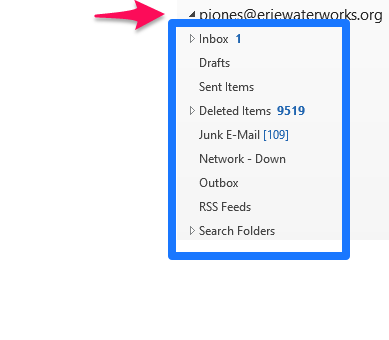
- Notice the dropdown arrow (in RED) which expands out to show all the folders within your mailbox (contained in Blue)
- As explained above, everything in any of these folders is part of your mailbox and takes up space
- Deleted items are STILL a part of your mailbox.
